Reporting bugs is an act of design
A good bug report does more than describe a problem: it saves the team hours, speeds up the fix, and removes ambiguity. This is the structure I use so every case is clear the first time.
Reporting principles
Before touching the keyboard, these are the rules that define the how and why of every report.
100% reproducible
If it cannot be reproduced, it is not a bug, it is an observation. Every step is numbered and verifiable.
Context, not opinions
Observed vs. expected behavior is described. Business decides the impact rating.
Visible evidence
Screenshots, recordings, and attachments. A good report is understood without opening a side ticket.
Clear criteria
The fix does not end when it 'seems to work': it ends when the acceptance criteria are met.
How a report is built
Five sequential steps I follow from detecting the case until it is ready for handover.
Identify
I detect the case during exploratory or regression testing. I note the exact flow.
Validate
I reproduce the bug in at least 2 cycles. I confirm it is not a flake (real intermittent).
Evidence
I take screenshots, record screen video, and export logs if the case requires it.
Write
I write the report with the template: title, description, steps, expected, actual, criteria.
Deliver
I file the ticket with the correct priority, assign the module, and notify the owner.
How I document a bug
Every report follows the same internal structure (A→G). Apps change, the method does not.
Description
Inside the Scan Invoice flow, an info screen is shown before allowing the user to continue scanning. When selecting "Don't show this message again", the system stops showing the alert while the user keeps the session active. However, if the user logs out and logs back in, the alert is shown again. This behavior indicates the preference is not being saved persistently.
Steps to reproduce
- Log in to the app with a valid user.
- Go to the Scan Invoice flow.
- On the info screen, tick "Don't show this message again".
- Continue the flow and verify the message is not shown again during the active session.
- Log out.
- Log in again with the same user.
- Go back to the Scan Invoice flow.
- Observe that the info screen is shown again.
Expected vs. actual result
The preference is saved persistently. The info screen does not reappear, even after logging out and back in.
The option only works inside the active session. On re-login, the message reappears.
Acceptance criteria
- ✓The "Don't show this message again" preference must be saved persistently.
- ✓The info screen must not reappear after logging out and back in.
- ✓The preference must remain associated with the corresponding user.
- ✓If another user logs in on the same device, their own configuration must be respected.
- ✓The behavior must be validated on Android and iOS.
- ✓If the user does not tick the option, the info screen must continue to show per the defined behavior.
Evidence
Evidence: Scan Invoice flow. The marked area corresponds to the affected checkbox.
Description
When uploading an invoice, the system does not show all products visible in the document when they do not exist in the catalog. Several products are seen in the invoice, but in the processed detail only some appear in the Extracted Products table. Products without a match must also be listed, marked as No match, so the user can review or associate them manually.
Steps to reproduce
- Log in to the system with a valid user.
- Upload an invoice containing several products.
- Wait for the OCR to process the invoice.
- Access the invoice detail from the Backoffice.
- Compare the visible products in the image with the products in the Extracted Products table.
- Verify that some visible products do not appear in the table.
Expected vs. actual result
Show all products read, even without a match, with No match status so the user can review them.
Only some products are listed. The system skips visible products that have no catalog match.
Acceptance criteria
- ✓The OCR must show all products read from the invoice.
- ✓Products without a match must be shown with No match status.
- ✓The system must not skip visible products just because they have no match.
- ✓The user must be able to manually review the non-matching products.
- ✓The product count in the detail must match the ones detected by OCR.
- ✓The information must include name, quantity, price, and total when visible.
- ✓The behavior must apply to every processed invoice.
Evidence
Evidence: Backoffice · Invoice detail. The invoice contains 3 products · the table only lists 2.
How I cover a feature before it is developed
Requested feature: the dashboard banner must count pending invoices and recognized points.
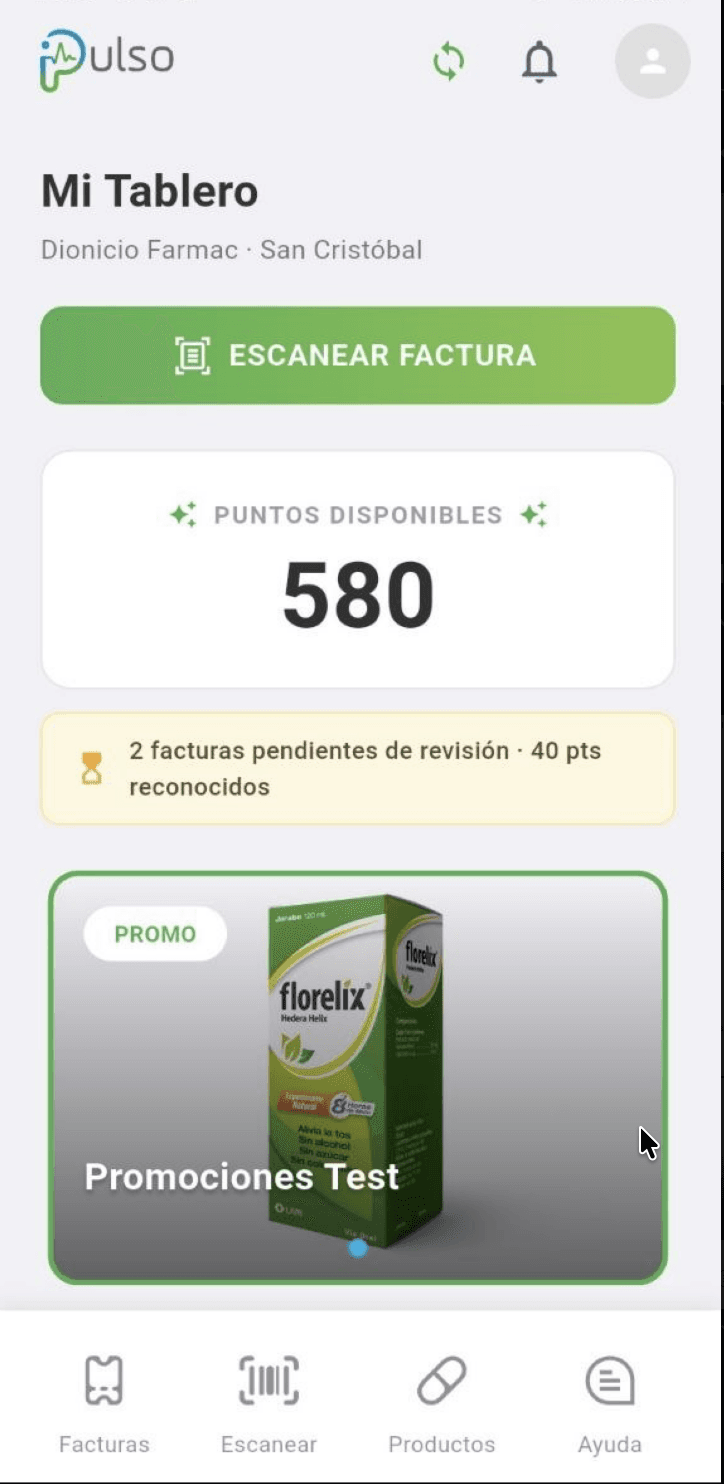 ⌖ Banner to test⌖ App: Pulso
Client request
Inside the dashboard banner (My Dashboard), all pending invoices must be counted, including those with and without recognized points.
- Count invoices in pending status.
- Sum recognized points of each pending invoice.
- Do not count approved, rejected, cancelled, or processed invoices.
- Show the counter in the format:
🧪 Test cases (20)
| ID | Scenario | Scene / case | Test data | Expected result | Category |
|---|---|---|---|---|---|
| CP-01 | Base count | User with no pending invoices | 0 pending invoices | The banner is not shown or shows 0 pending invoices · 0 recognized pts, per defined design. | Conteo base |
| CP-02 | Base count | One pending invoice with recognized points | 1 pending invoice with 20 pts | The banner shows 1 invoice pending review · 20 recognized pts. | Conteo base |
| CP-03 | Base count | One pending invoice without recognized points | 1 pending invoice with 0 pts | The banner shows 1 invoice pending review · 0 recognized pts. | Conteo base |
| CP-04 | Base count | Several pending invoices with points | 2 pending invoices: 10 pts + 30 pts | The banner shows 2 invoices pending review · 40 recognized pts. | Conteo base |
| CP-05 | Base count | Several pending invoices without points | 2 pending invoices: 0 pts + 0 pts | The banner shows 2 invoices pending review · 0 recognized pts. | Conteo base |
| CP-06 | Base count | Mixed pending invoices | 1 invoice with 40 pts + 1 invoice with 0 pts | The banner shows 2 invoices pending review · 40 recognized pts. | Conteo base |
| CP-07 | Base count | Multiple mixed invoices | 5 pending: 10, 0, 20, 0, 30 pts | The banner shows 5 invoices pending review · 60 recognized pts. | Conteo base |
| CP-08 | States | Approved invoices must not be counted | 1 pending + 2 approved | Only the pending one is counted. The banner shows 1 pending invoice. | Estados |
| CP-09 | States | Rejected invoices must not be counted | 1 pending + 2 rejected | Only the pending one is counted. The banner shows 1 pending invoice. | Estados |
| CP-10 | States | Invoices in other non-pending states | Approved, rejected, cancelled, or processed invoices | They must not affect either the count or the recognized points. | Estados |
| CP-11 | Edge case | Pending invoice with null points | Pending with points = null | It must be counted as a pending invoice and the points must be treated as 0. | Edge case |
| CP-12 | Edge case | Pending invoice with decimal points, if applicable | 1 invoice with 10.5 pts | Validate whether the system allows decimals or must round. | Edge case |
| CP-13 | Edge case | Singular/plural of the text | 1 pending invoice | It must read 1 pending invoice, not 1 invoices pending. | Edge case |
| CP-14 | Synchronization | Update after scanning an invoice | The user scans a new pending invoice | The counter increases immediately or after refresh, per expected behavior. | Sincronización |
| CP-15 | Synchronization | Update after approval | A pending invoice becomes approved | The pending counter decreases and the recognized points update. | Sincronización |
| CP-16 | Synchronization | Update after rejection | A pending invoice becomes rejected | The counter decreases and its points are no longer summed. | Sincronización |
| CP-17 | Multi-pharmacy | User with several pharmacies | The user changes the active pharmacy | The banner must show only the pending invoices of the selected pharmacy. | Multi-farmacia |
| CP-18 | Synchronization | Pull to refresh / refresh button | Data changes in backend | The banner must update the quantity and the points correctly. | Sincronización |
| CP-19 | Errors | Data load error | Backend does not respond | Show controlled state: loading, error, or keep last valid data, per design. | Errores |
| CP-20 | Errors | User offline | App offline | It must not show incorrect data; it must handle the offline state correctly. | Errores |